

How to Upload Your Available Points
Buyers and appraisals need your current, verified DVC points. Here is the simple way to get them from Disney and add them to your listing, before you even create an account.
See exactly how it is done
Our short interactive guide walks you through every click - logging in to Disney, capturing your points for each year, and uploading them here. It automatically shows the right steps for your phone or computer.
Get your points from Disney
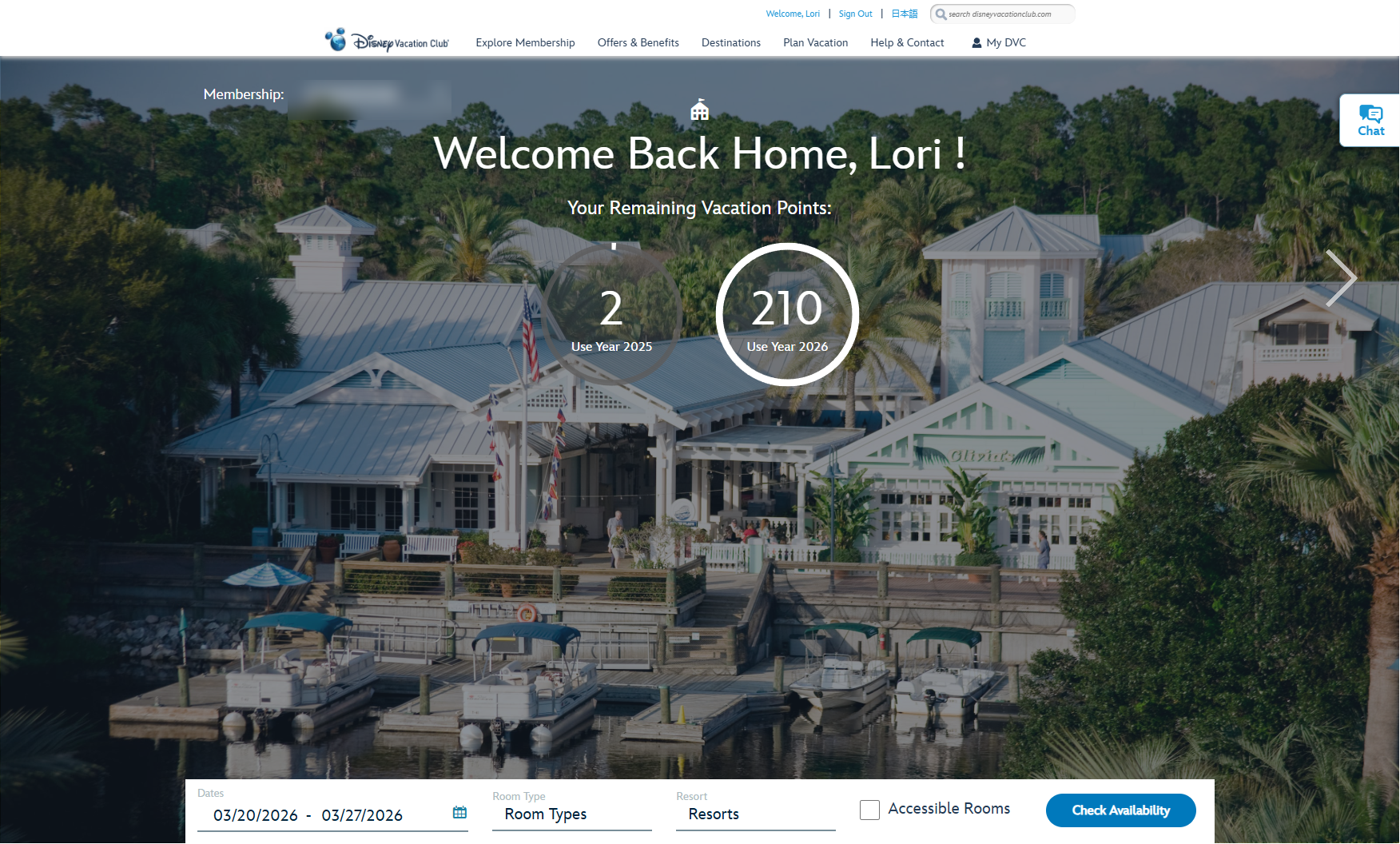
Everything in this phase happens on Disney's Member Services website.
Log in to your Disney Member account
Go to Disney's Member Services website and sign in with the account that holds your DVC membership.
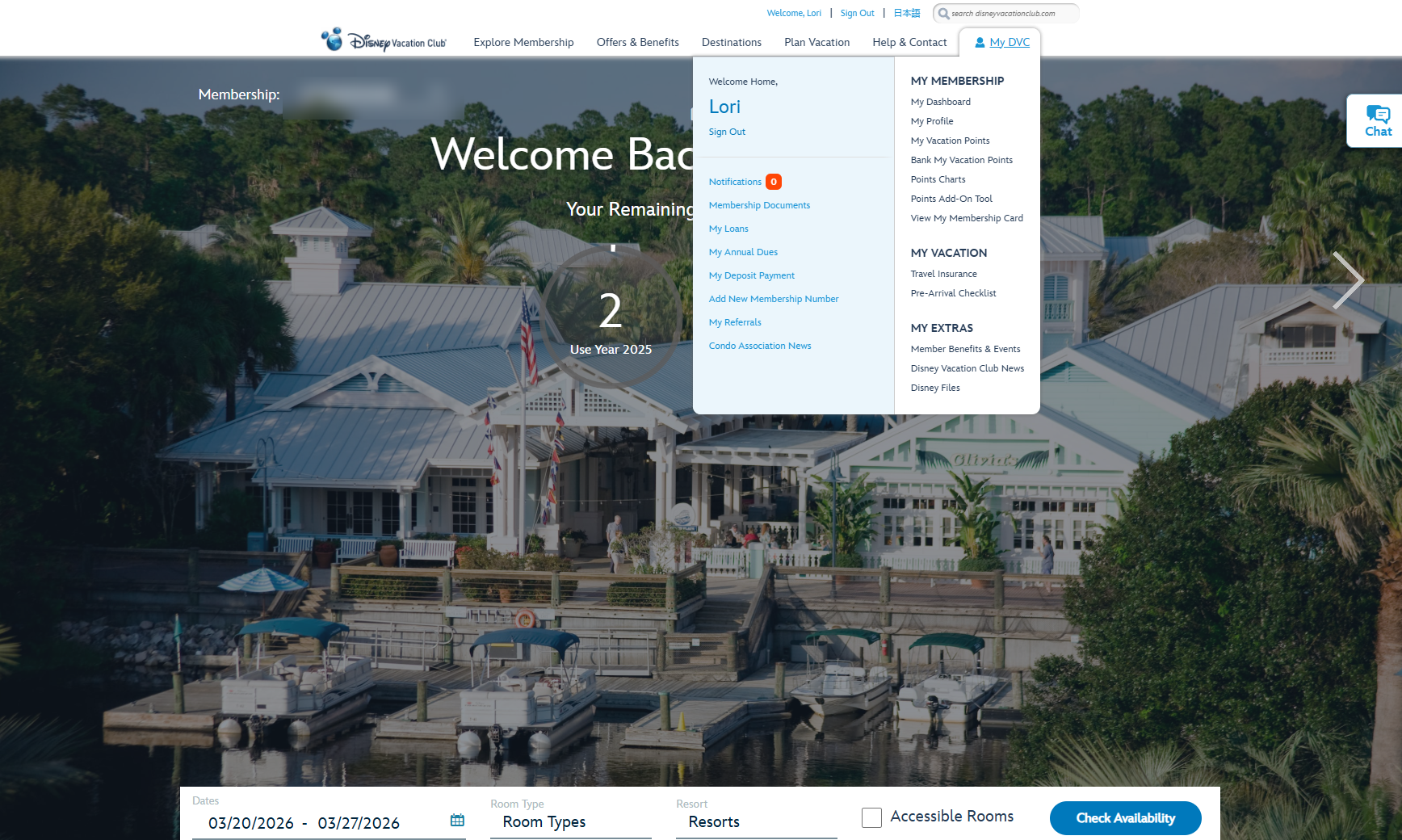
Open "My DVC" and click "My Vacation Points"
From the top menu, choose My DVC, then select My Vacation Points to open your points dashboard.
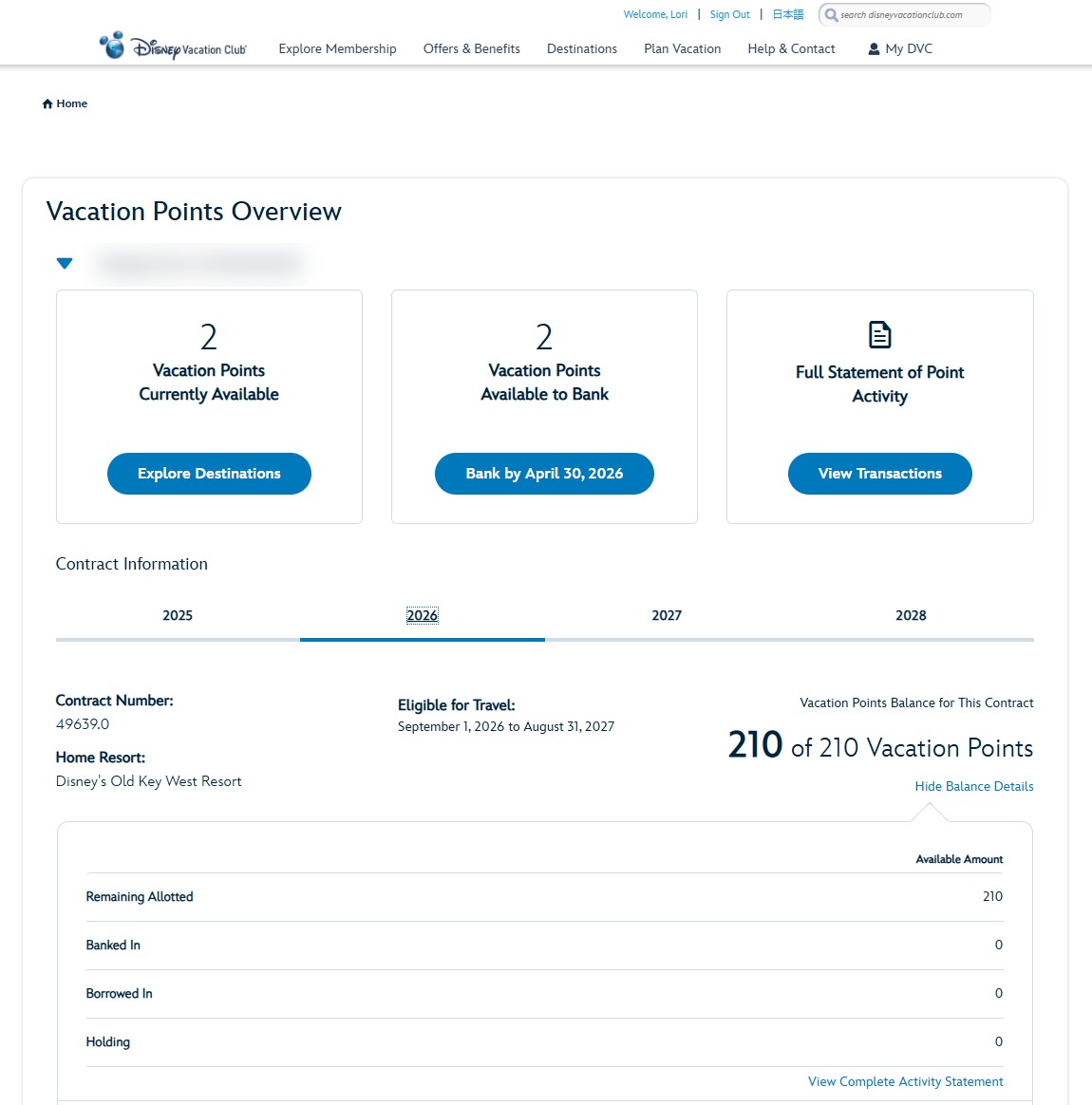
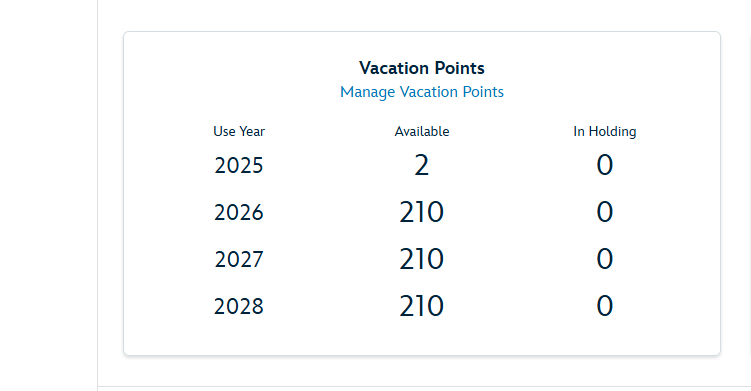
Find your points for each Use Year
Your page lists your available and banked points by year. This is the exact information a buyer needs to value your contract correctly.
Take a screenshot of each year
Save a clear picture of every year shown. The video demonstrates the fastest way for your device.
On a computer: use the Snipping Tool. On an iPhone: press Side + Volume Up. On Android: Power + Volume Down.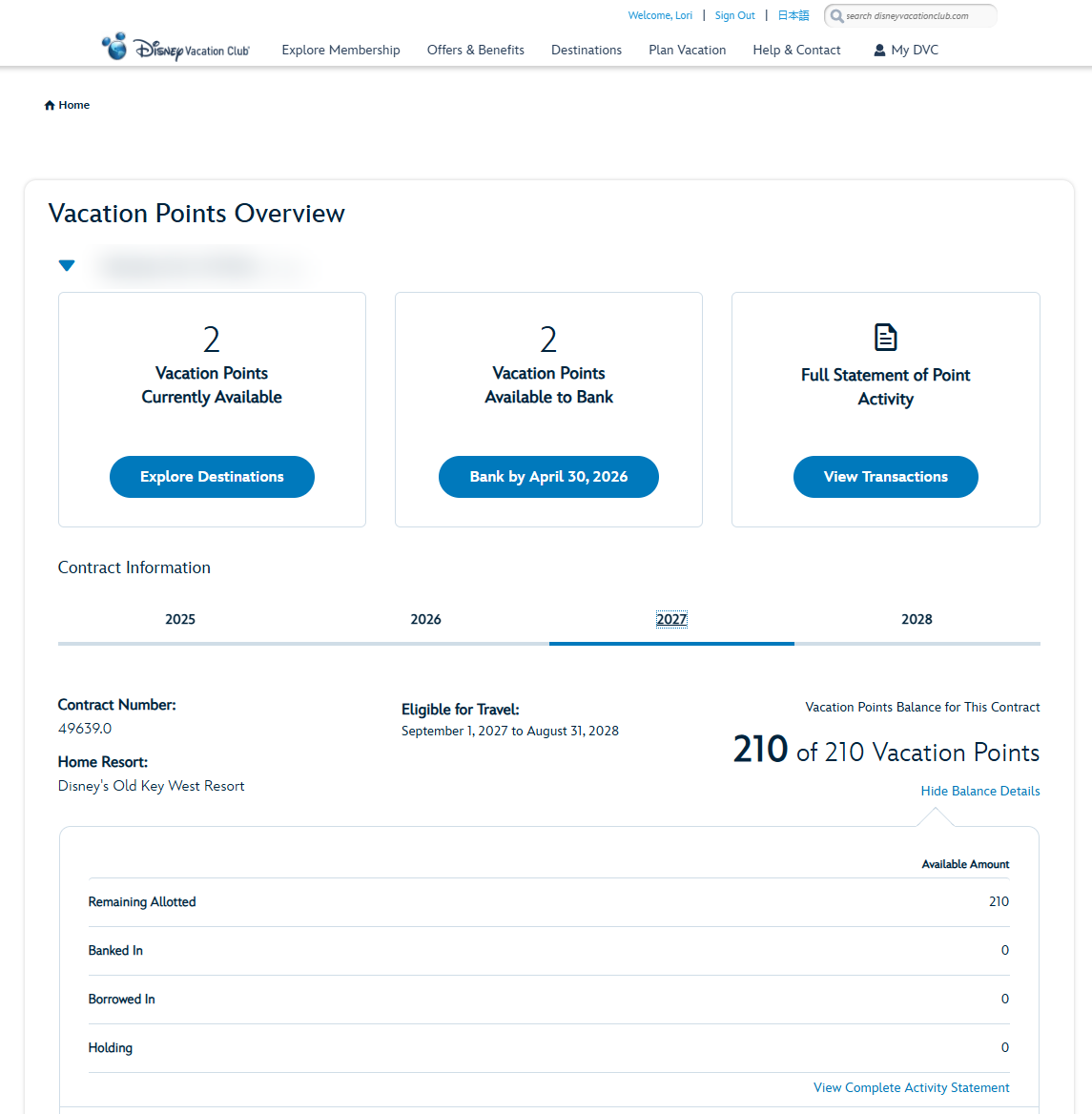
Add them to DVC Sales
Now upload what you saved - our system does the rest.
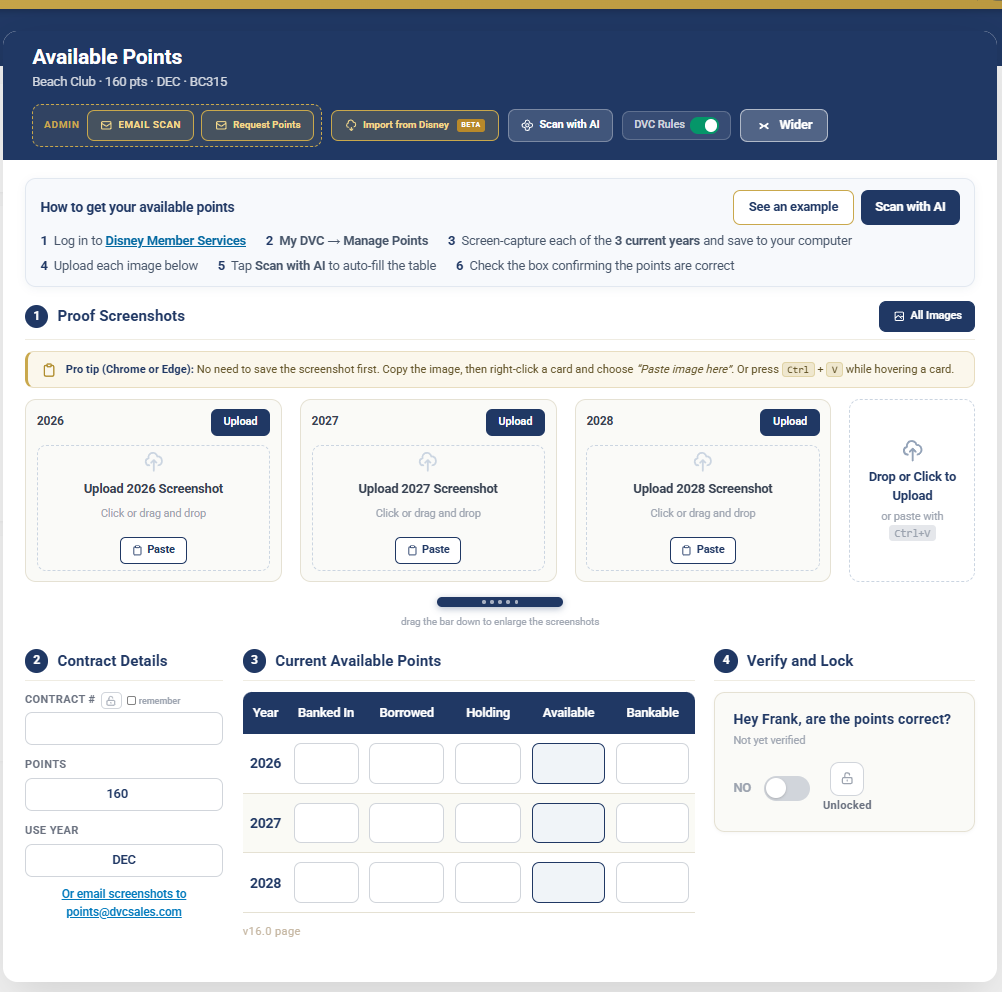
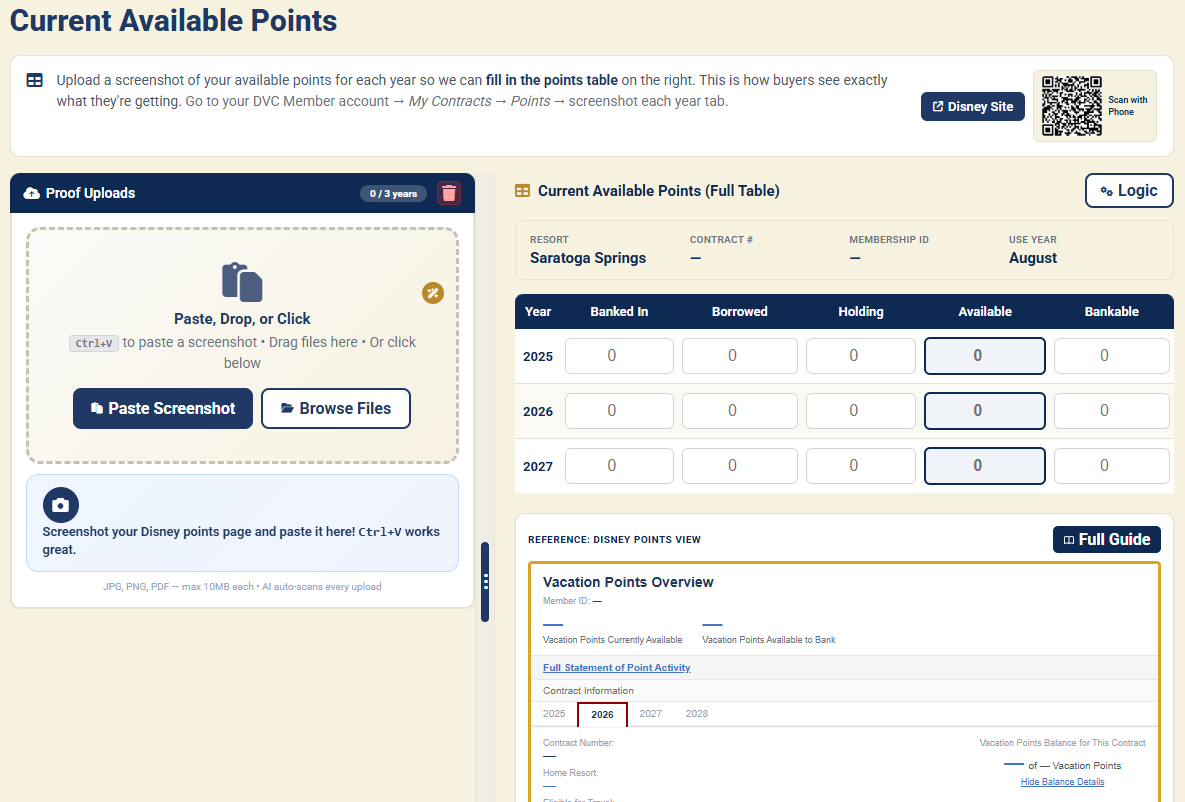
Open your Available Points page
Once you start a listing with us, you get an Available Points page. Tap Upload and choose the screenshots you saved.
Let the scan read your points
Our tool reads your images and fills in the point details automatically - no typing numbers by hand.
Review and confirm
Check that everything matches, then confirm. Your listing now shows current, verified points that buyers can trust - which helps it sell faster.
Ready when you are
You do not need an account to see how it works. When you are ready, get a free appraisal or list your DVC in minutes - and we will help you every step of the way.